
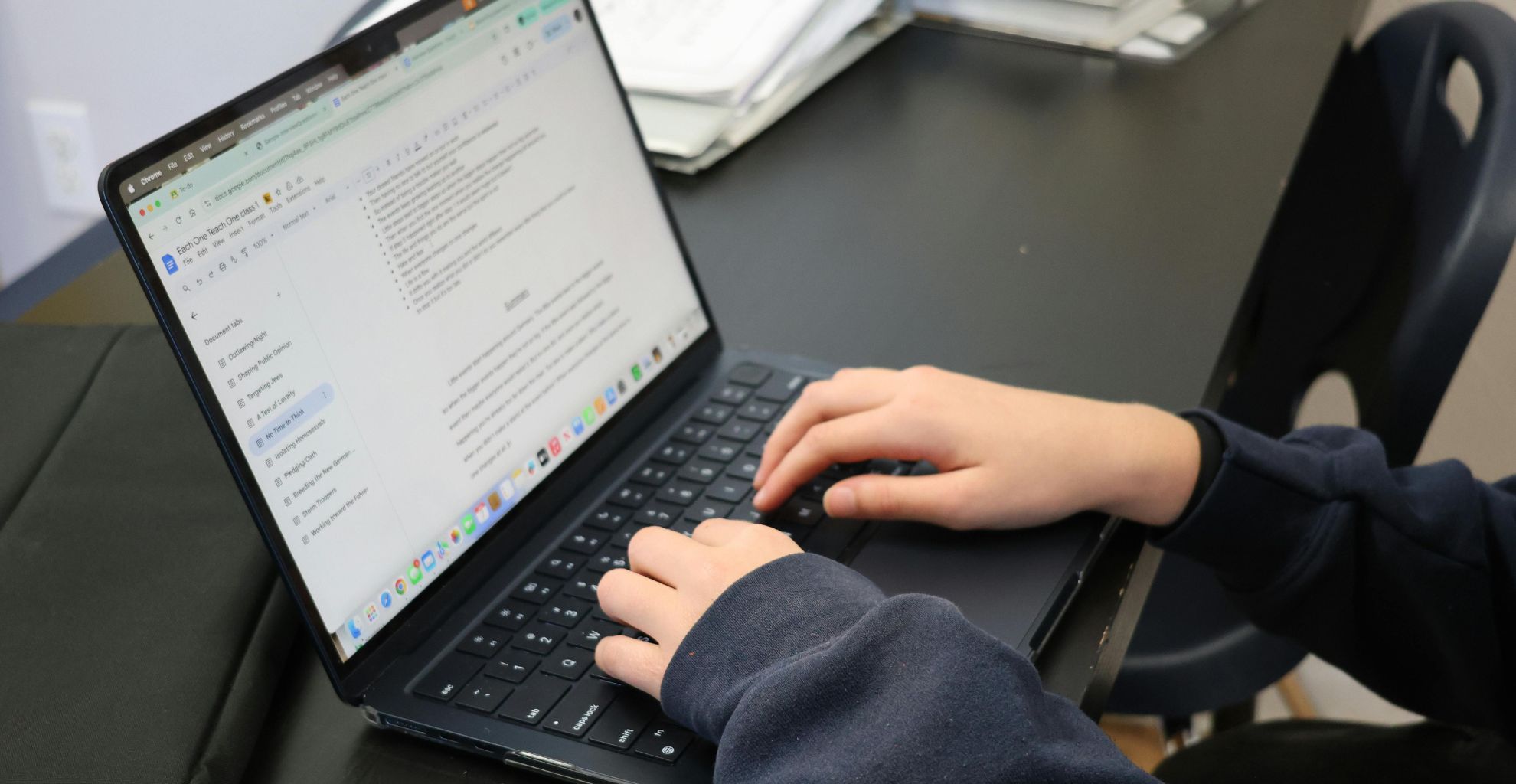
If you want to Speed Up a Slow Laptop without spending money on new hardware, the solution usually lies in proper Windows update, removing junk files, managing startup programs, clearing cache, scanning for malware, adjusting power mode, disabling unnecessary background processes, and improving overall system performance through smart maintenance.
In this guide, I will show you how to fix slow laptop issues step by step using real-world laptop optimization methods we apply daily at iRepair Mobiles Solihull. You will also understand when cleaning is enough and when the debate of RAM upgrade vs SSD actually becomes relevant.
Table of Contents
1. Update Your Operating System and Software
If you want to seriously Speed Up a Slow Laptop, start here.
Outdated Windows OS, missing security patches, and old drivers can reduce system stability and overall performance.
Open Windows Update in your settings and check for available updates. Install the latest critical and non-critical updates, including optional driver updates if needed.
| Why Updates Matter | Impact on Performance |
|---|---|
| Security patches | Protect against malware using CPU |
| Stability fixes | Prevent crashes and freezing |
| Feature enhancements | Improve functionality |
| Driver updates | Optimize hardware communication |
Outdated graphics drivers, network drivers, or chipset versions can silently hurt performance. Always restart or reboot after updates to allow the system to apply changes.
Do this weekly.
2. Remove Unnecessary Files / Free Up Disk Space / Clean Up Your Hard Drive
A nearly full drive makes your laptop sluggish.
When storage space is full, the operating system struggles with virtual memory and the paging file. That leads to lag, freeze, and slow apps.
Use Disk Cleanup:
- Search “Disk Cleanup”
- Select drive
- Remove temporary files, Windows update cache, installer applications, and previous versions
Also check:
- Downloads folder
- Recycle bin
- Duplicate files
- Large system files
If your disk usage shows 1GB free on a 256GB drive, performance will collapse.
Tools like TreeSize Free help identify large files quickly.
| File Type | Action |
|---|---|
| Temporary files | Delete |
| Windows update cache | Clear |
| Duplicate media | Remove |
| Junk clutter | Clean |
If using HDD, run defragmentation. If using SSD, use Optimize Drives instead.
3. Uninstall Unused Software / Old Programs / Apps
You would be shocked how much bloatware eats your CPU, memory, and disk space.
Go to:
Control Panel → Programs and Features
Or Settings → Apps
Uninstall unused applications, preloaded software, and auto-launch apps.
Things to look for:
- Old antivirus trials
- Unused editing software
- Random pop-up toolbars
- Recently used but no longer needed programs
Unused software runs quietly in the background, affecting boot performance.
Be ruthless. If you don’t use it, remove it.
4. Disable Startup Programs
Slow boot time?
Press Ctrl + Shift + Esc → Open Task Manager → Startup tab.
Disable unnecessary startup programs.
| Startup Status | Action |
|---|---|
| High impact | Disable |
| Not essential | Disable |
| Security related | Keep enabled |
Too many apps launching at boot slow your morning login sessions. Free up RAM and CPU for actual work.
5. Check for Malware
Hidden malware, virus, or spyware infections silently consume processing power.
Open Windows Security → Run a full scan.
Or use trusted third-party tools like Malwarebytes.
Red flags:
- Random popups
- High CPU usage
- Crypto mining behaviour
- Background processes you don’t recognize
A single infection can reduce performance by 30 to 40 percent.
Security is performance.
6. Turn Off Background Apps
Go to Settings → Privacy → Background apps.
Disable apps that don’t need permissions to run constantly.
Each inactive app consumes memory, CPU, and system resources. Turning off unnecessary activity improves responsiveness immediately.
7. Adjust Visual Effects
Older machines struggle with flashy animations.
Search “Adjust the appearance and performance of Windows”
Select “Adjust for best performance.”
This reduces transparency and visual effects. The laptop feels instantly faster because fewer resources are wasted.
8. Set Power Mode to Best Performance
Go to:
Control Panel → Power Options
Choose High Performance or Best Performance mode.
Yes, battery drain increases. Yes, laptops run warmer.
But CPU limitation is removed, and maximum performance becomes available.
9. Optimize / Defragment Drives
For HDD users:
Search “Defragment and Optimize Drives”
Run the tool.
For SSD users:
Optimize, do not defragment.
This improves file access and boot times.
Schedule semi-regular optimization.
10. Monitor Resource Usage
Open Task Manager.
Check CPU, memory, disk usage.
If Chrome uses 90 percent CPU because of 20 open tabs, that’s your issue.
Close heavy apps. Right-click and end tasks if needed.
Identify what is clogging your system.
11. Turn Off Unnecessary Notifications
Notifications trigger background actions.
Go to Settings → Notifications
Turn off non-essential apps.
Small improvement, but it adds up.
12. Restart Properly
Never underestimate a proper restart.
Restart clears temporary files, refreshes RAM, and stops background processes.
Sleep is not the same.
Restart weekly for a clean slate.
Check Your Internet Speed
Sometimes the laptop is fine. The network is slow.
Test using speedtest.net.
If Wi-Fi signal is weak:
- Move closer to router
- Use ethernet cable
- Restart router
Slow internet feels like slow performance.
Use Third-Party Cleanup Tools Carefully
Tools like CCleaner, Glary Utilities, or Advanced SystemCare can help remove:
- Browser cache
- Cookies
- Temporary files
- Registry clutter
But do not blindly click everything.
Use trusted tools only.
Find Large and Duplicate Files
Open File Explorer.
Sort by size.
Delete duplicate files.
TreeSize Free is excellent for this.
Freeing 10GB can dramatically improve performance if space was limited.
Enable Fast Startup / Configure Storage Sense
Enable Fast Startup in Power Options.
Turn on Storage Sense for automatic cleanup.
These small configuration tweaks maintain performance over time.
When Cleaning Is Not Enough
Here is the honest part.
If your device is over 5 to 10 years old, running 4GB RAM and HDD, no amount of cleaning will fully fix it.
That is when the real question appears:
RAM upgrade vs SSD?
| Upgrade Type | Impact |
|---|---|
| RAM 8GB → 16GB | Better multitasking |
| HDD → SSD | Massive boot speed improvement |
| SSD + RAM | Feels like new device |
SSD upgrade is usually the most cost-effective improvement.
At iRepair Mobiles Solihull, we see performance improvements of up to 400 percent after switching from HDD to SSD.
Safety Precautions Before Factory Reset
If everything fails, consider factory reset.
But:
- Backup important files
- Save licence keys
- Sign out of Microsoft or Apple ID
- Store files on external hard drive or cloud
A factory reset wipes apps and settings completely.
Final Thoughts
To truly Speed Up a Slow Laptop, you need consistent laptop optimization, regular updates, disk cleanup, malware scans, startup control, and smart resource management.
Most slow laptop solutions are not expensive. They are disciplined.
If your device is still struggling after applying all these steps, bring it to iRepair Mobiles Solihull. We perform full system health checks, hardware diagnostics, and professional optimization to make sure your laptop runs smoothly for years.
A slow laptop is usually not broken.
It is overloaded.
Fix that properly.